Sign in

For Microsoft Dynamics 365 Business Central partners

The setup workbook, retired.

SetupBC takes a customer's company from the first workshop to an app you install in Business Central. You answer questions in plain words, SetupBC prepares every setup table, you approve each one, and the build hands you one app with the data and its own import cockpit.

For Business Central online (cloud). Paid by invoice, no card needed.

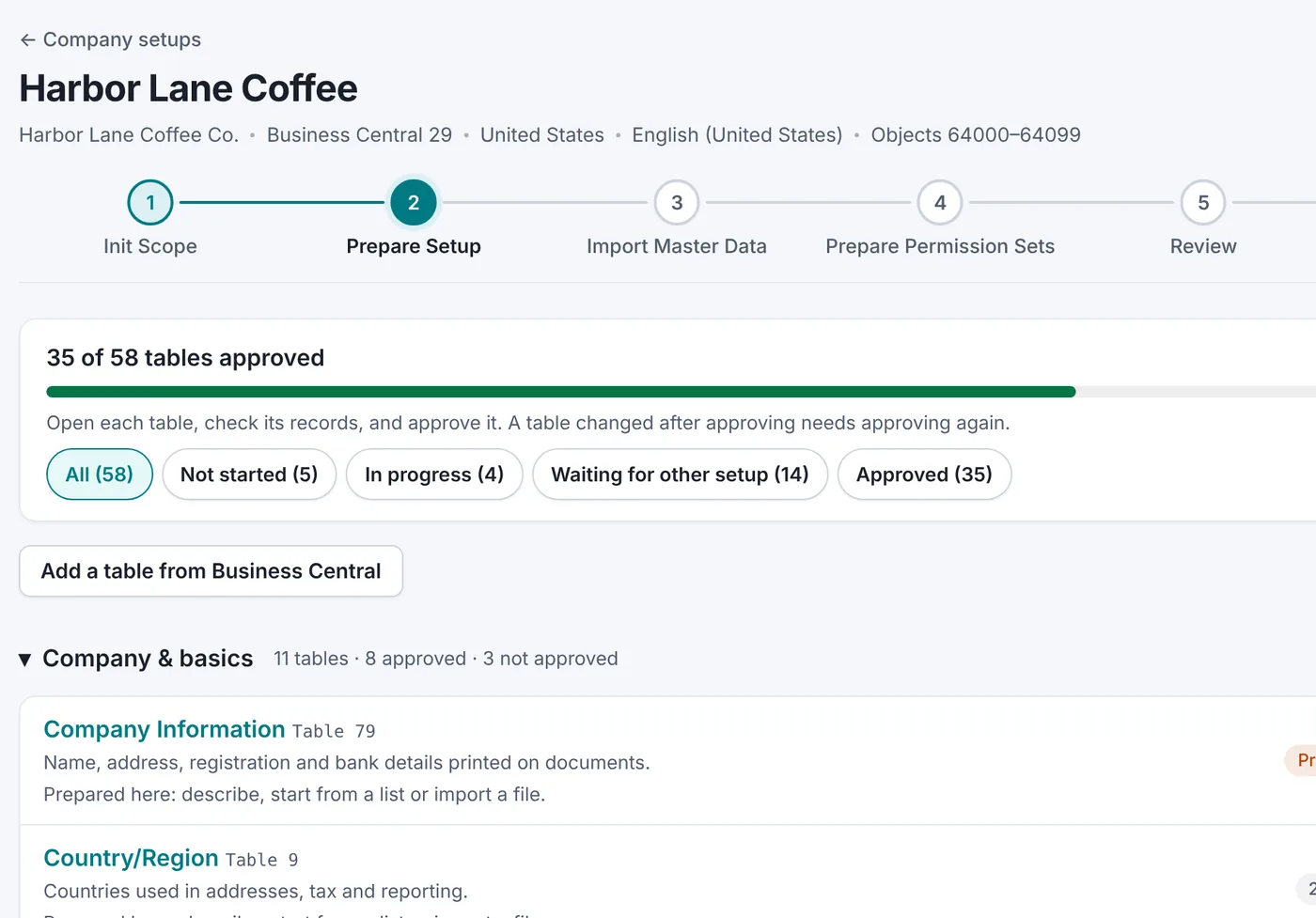
Prepare Setup in SetupBC: 35 of 58 tables approved for Harbor Lane Coffee, grouped by area with the status of each table
35 of 58 tables approved. By Tuesday, not by month end.

What SetupBC is for

Every Business Central go-live has the same quiet part in the middle: weeks of filling in setup tables. Payment Terms, No. Series, the chart of accounts, General Posting Setup, locations, bins, dimensions. Usually in a configuration package workbook that goes back and forth by email until nobody is sure which copy is right.

How it usually goes

  • A workbook with a sheet per table, filled in by the customer, fixed by the consultant
  • Customers, vendors and items copied over from the old system by hand
  • General Posting Setup worked out on a whiteboard, line by line
  • RapidStart packages imported again after every round of corrections
  • Questions about "which version did we send?" in week three

With SetupBC

  • One place per company, with the questions that decide which tables it needs
  • Each table proposed by AI from a description, imported from a file, or started from a standard list
  • Nothing goes in until a consultant has checked and approved it
  • Frozen versions you can compare, so you know exactly what you delivered
  • One app per customer, installed in one step, that imports setup first and master data after

How it works

The same six steps you see in the app, for each company you set up.

  1. Init Scope

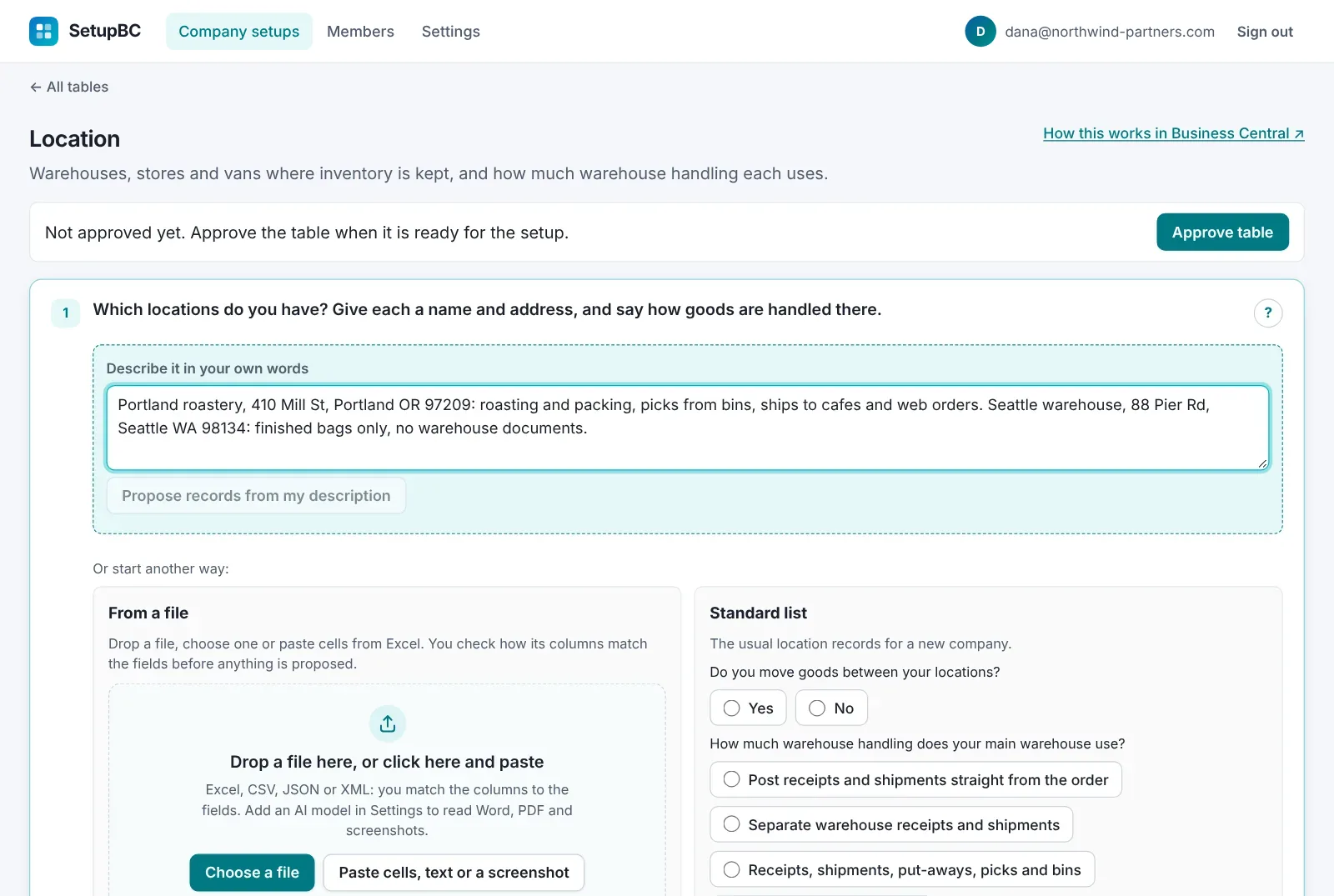
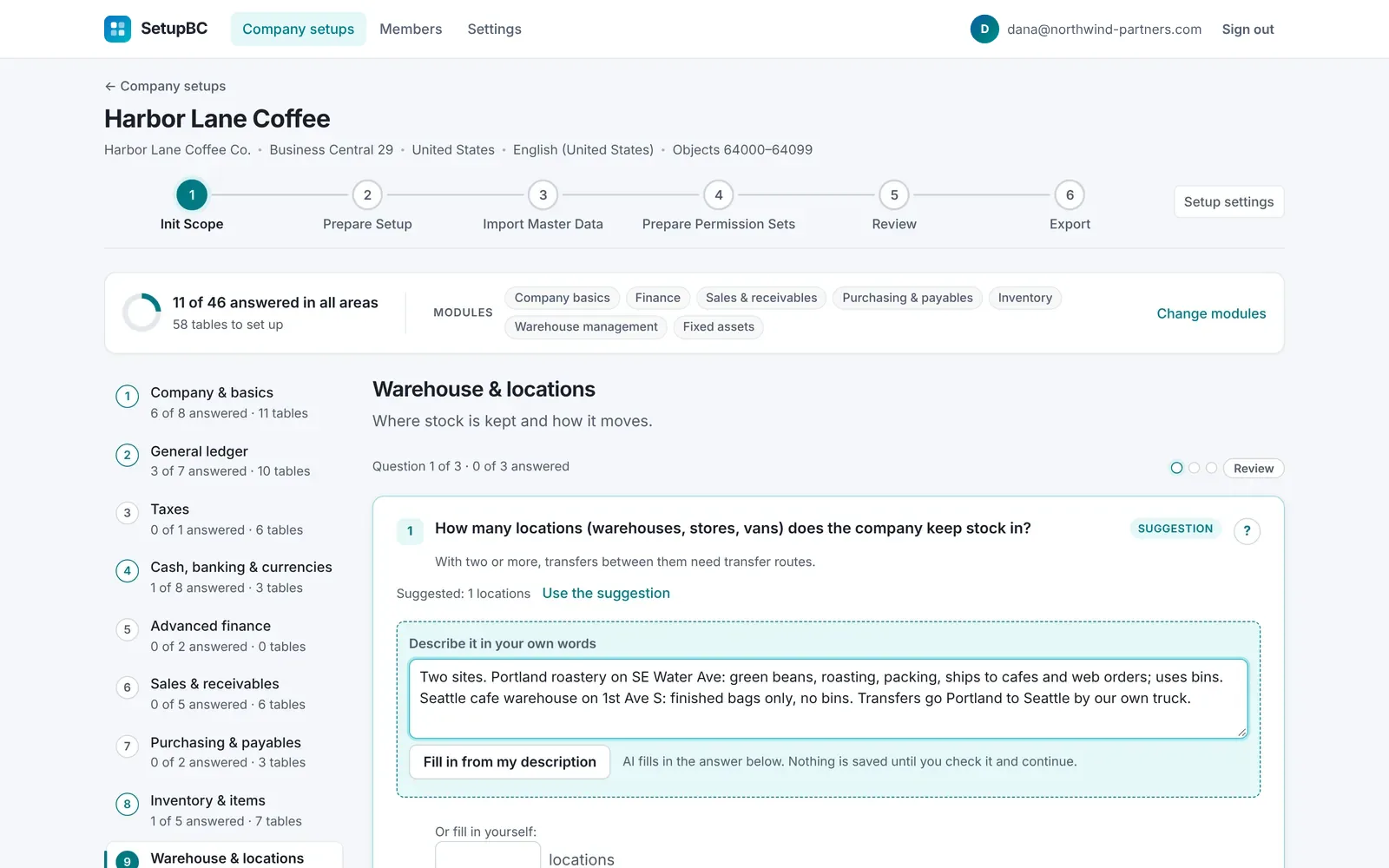
    Pick the modules the company uses, then answer the questions area by area. "How many locations does the company keep stock in?" can be answered in your own words: AI fills in the answer, and nothing is saved until you check it. The answers decide which tables the company needs, and why.

  2. Prepare Setup

    Every setup table gets its own page. Describe the records, drop an Excel, CSV, Word or PDF file, paste cells, or start from the standard list. SetupBC knows the order: Bin waits for Location, posting setup waits for the chart of accounts. Approve each table when it is right.

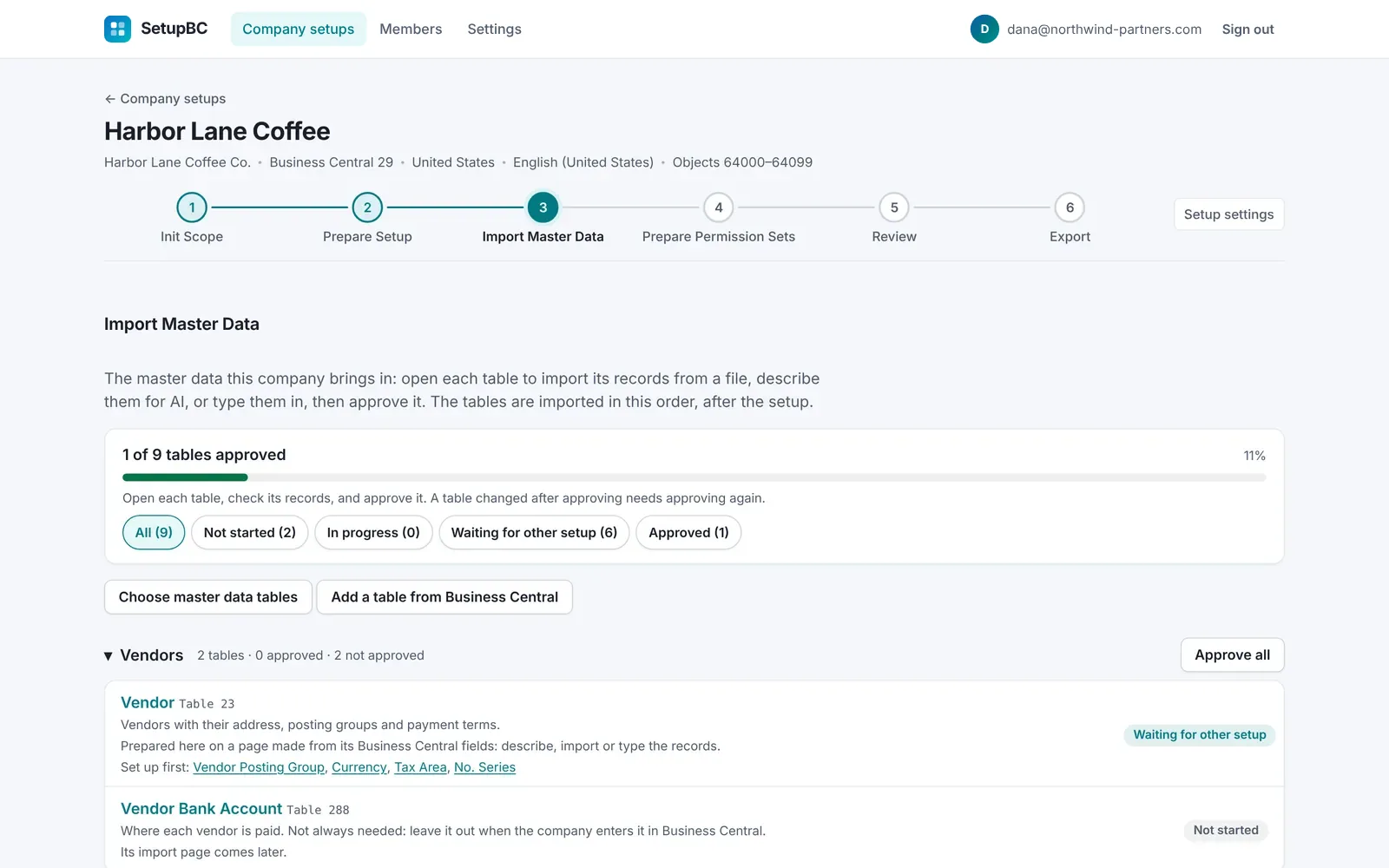
  3. Import Master Data

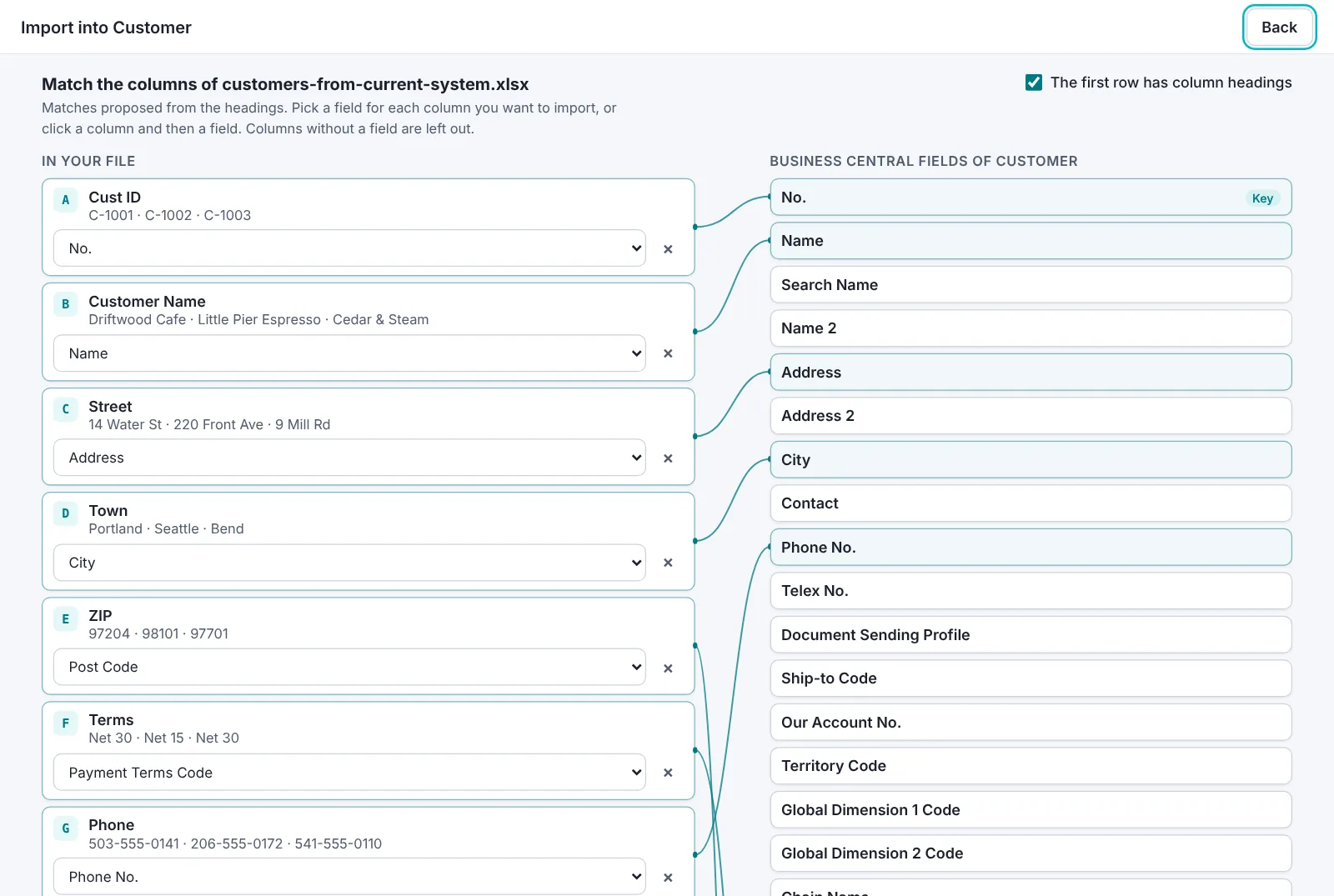
    Customers, vendors, items and the tables around them come in from the customer's own files. You match the columns once, SetupBC matches values like payment terms or posting groups to the setup you just approved.

  4. Prepare Permission Sets

    Describe what each role does and must not do. SetupBC builds a permission set from Business Central's own sets, shows what the role really gets, and gives you the file for Import Permission Sets.

  5. Review

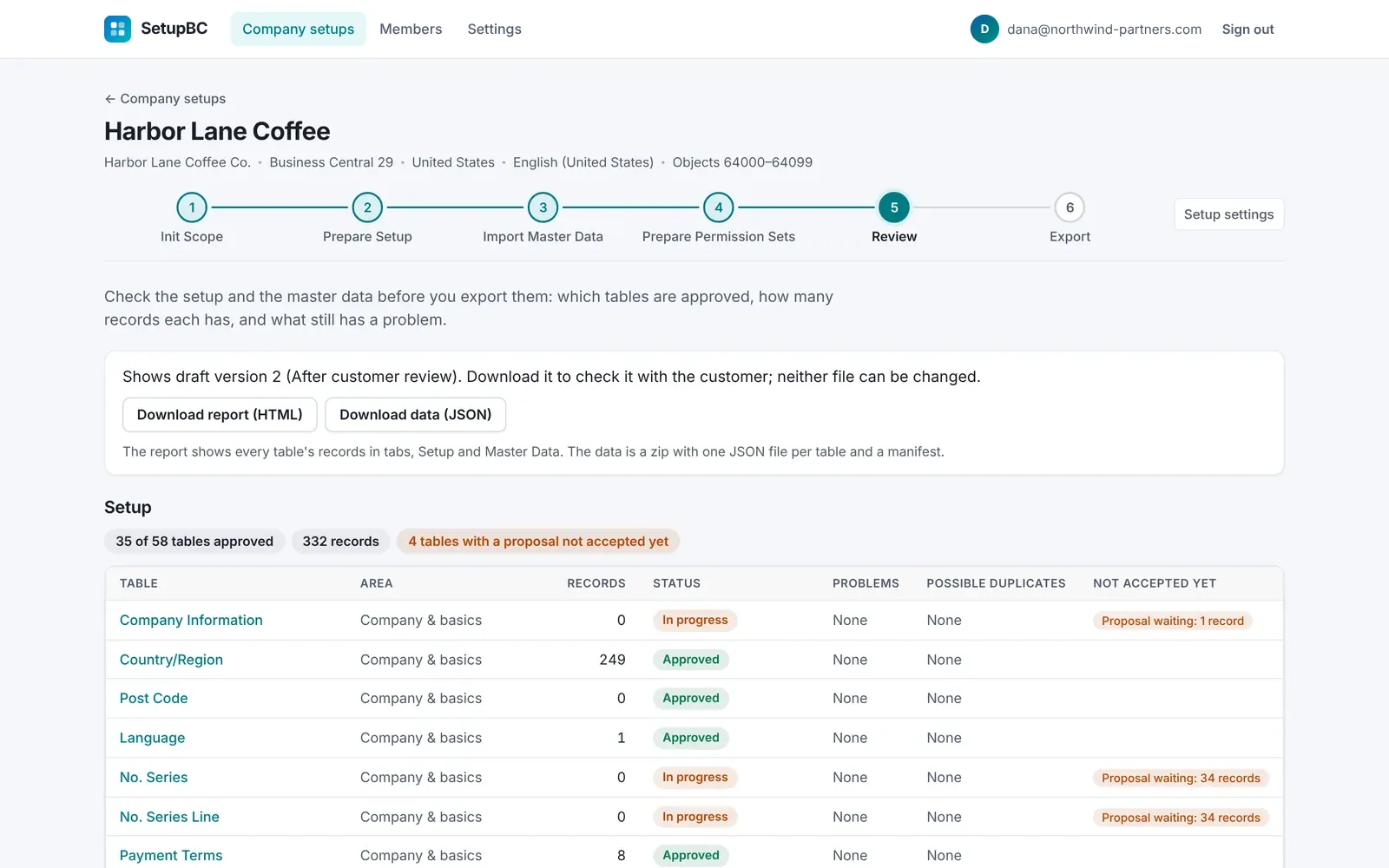
    See which tables are approved, how many records each has and what still has a problem. Download a report for the customer to read, and the data as JSON, before anything is built.

  6. Export

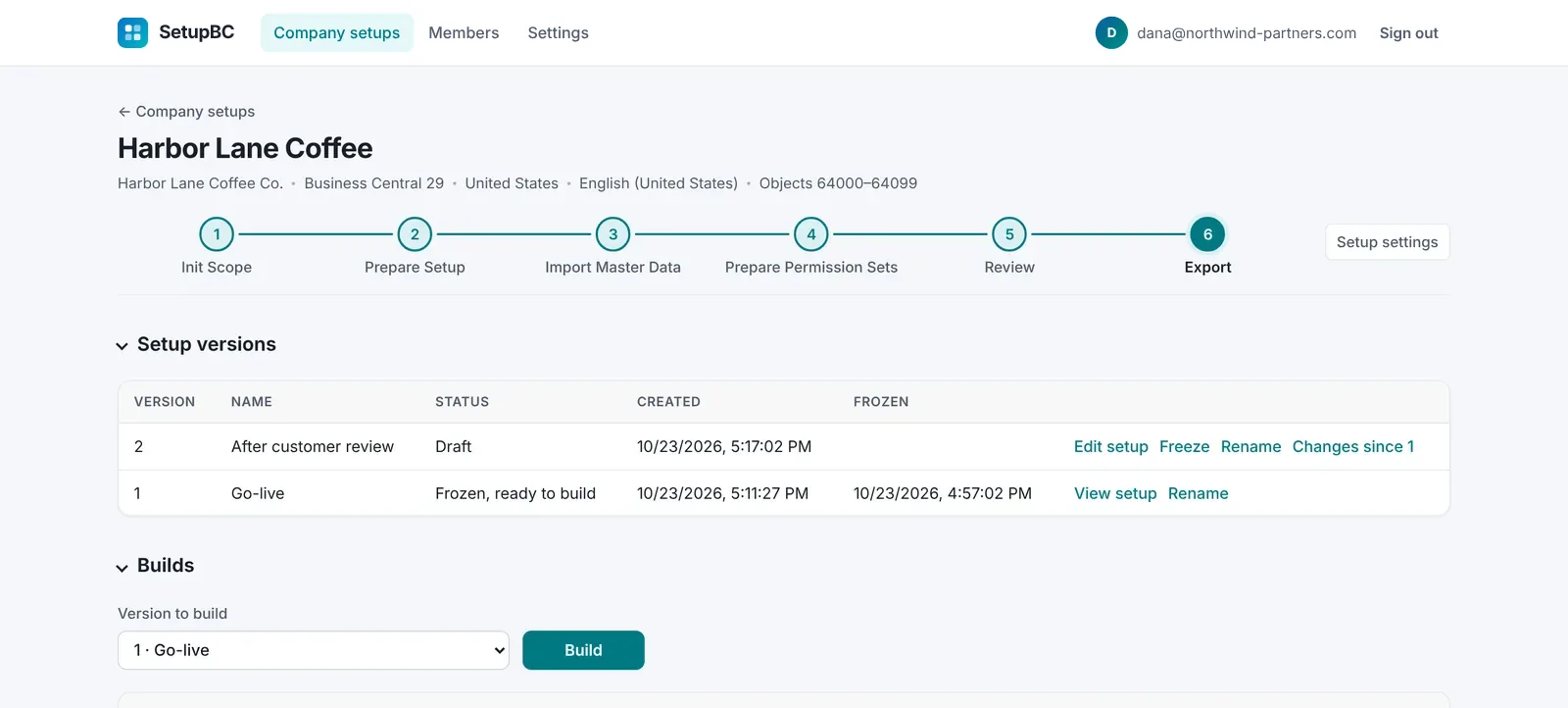
    Freeze a version and build it. You get one app for the customer's company and its source code, numbered in your object range. Install it, open the SetupBC Cockpit, check or dry-run, then import.

What it does, specifically

No slideware. These are the things the app does today.

Questions that set the scope
Around 50 questions across company basics, general ledger, banking, sales, purchasing, inventory, warehouse and fixed assets. Each answer says which tables it brings in.
Three ways into every table
Describe it for AI, import a file, or start from a standard list. Mix them: start from the list, change two records in plain words, add one by hand.
Files from any system
Excel, CSV, JSON and XML exports from whatever the customer uses today. Match the columns once, for any setup table or master data; values like payment terms are matched to the setup you approved. Word files, PDFs and screenshots are read by AI.
Posting setup worked out for you
General Business Posting Groups, General Product Posting Groups and General Posting Setup, with Suggest with AI filling every account from the G/L accounts you approved. The same for Inventory Posting Setup.
Number series from two questions
How many customers, vendors and items, and how documents should be numbered. SetupBC makes every No. Series the scope needs, with its lines.
Any Business Central table
Something not on the list? Add any table Business Central offers and it gets a page made from its fields, with the same import and approval.
Versions you can compare
Freeze a version before you build, start a new draft for the customer's corrections, and compare the two table by table.
One app per customer
The import engine and the data in one app, numbered into your range (64000 to 64099 unless you choose your own). Nothing else to install first.
A cockpit inside Business Central
The app opens on the SetupBC Cockpit: setup and master data in import order, check or dry-run first, fields validated as if typed, every error exported to Excel.
Your team, your AI key
Owners, admins, consultants and viewers in one partner account. AI is included; larger partners can use their own Azure AI key so customer data stays in their own Azure.
The real screens

Taken from the app with a demo company, Harbor Lane Coffee, a roaster with two locations.

See one company set up

A walkthrough of the app with the Harbor Lane Coffee demo company, from the first question to the built app. It has a voice-over and a short caption on every scene; the caption track you can turn on is the transcript of the voice.

What you gain, in your own numbers

The defaults are our estimates, not measurements. Replace them with yours.

You save 120 hours a year (3.8 consultant days per setup), worth 21,000 USD. 16,000 USD a year after the plan. The first setup pays for the year.

"Hours a setup takes" means the setup tables, chart of accounts, posting setup, number series and master data templates, not the whole implementation. Compared with the partner plan at 5,000 USD a year.

Pricing

Partner

5,000 USD a year

Launch offer: 3,000 USD for the first year for the first 10 partners, then 5,000 a year. In return we ask for your feedback during the year and a short case study.

  • Every company setup you deliver, no per-project fee
  • Your whole team in one partner account
  • AI included, with a fair daily allowance, or bring your own Azure AI key
  • Apps and source code for each build, in your object range
  • Business Central online (cloud), new versions included
Create a partner account

Paid by invoice once a year. Create the account, we send the invoice and switch it on. If you ever stop, the apps already installed at your customers keep working.

One company

2,500 USD once

For a company moving to Business Central that sets up with us, or with a partner who does not use SetupBC yet.

  • One company setup, AI included
  • 90 days to prepare, review and build, as many builds as you need
  • The app and its source code, yours to keep
  • 1,000 USD for each extra company of the same customer
Ask for a company setup

Paid by invoice. After 90 days the setup becomes read-only; the app installed in Business Central keeps working. Partners with two or more go-lives a year pay less with the Partner plan.

Questions partners ask

Does the AI set up the company by itself?

No. AI proposes answers and records; a consultant checks them and approves every table. Nothing reaches a setup version without that approval, and every table can also be filled from a file or a standard list without AI.

How is this different from configuration packages and RapidStart?

Configuration packages move data you already have. SetupBC is where you work the data out: the questions decide which tables are needed, each table is prepared and approved, the order between tables is known, and versions can be frozen and compared. The result is one app with its own import cockpit, not a workbook.

What do we install at the customer?

One per-tenant extension for each company setup. It holds the import engine and the data, depends on nothing else, and opens on the SetupBC Cockpit, where you check, dry-run and import. You also get its source code, numbered into your object range.

Which Business Central and which countries are supported?

Business Central online (cloud), and each new version as Microsoft releases it. Every setup records its country and language. The first release prepares the US localization, and other countries follow on the same setups without starting over.

Where is the data, and who sees it?

SetupBC runs in Microsoft Azure in the European Union. Each partner account sees only its own company setups. AI also runs on Microsoft Azure in the European Union, or on your own Azure AI key if you prefer to keep customer data in your own Azure. Partners who need everything in their own region can run SetupBC in their own Azure, in the region they choose, for the same yearly price; ask us.

Are AI models trained on the data we import?

No. Your files and setups are not used to train AI models, ours or anyone else's. SetupBC uses Microsoft's Azure AI service, where Microsoft does not use what you send to train or improve models and does not share it with the model makers. The AI only proposes values; a person approves every change.

Is the data backed up?

Yes. The database is backed up automatically and can be restored to any point in the last 7 days, and we test a full restore every month. Deleted files can be recovered for 7 days. Backups stay in the European Union with the rest of the data.

Can we bring the customer's existing data?

Yes. Excel, CSV, JSON and XML files are read after you match the columns. Word files, PDFs and screenshots are read by AI. Values like payment terms or posting groups are matched to the setup you approved.

Is there a limit on companies or consultants?

No limit on company setups or on the people in your partner account. AI use has a fair daily allowance to keep the service fast for everyone; with your own Azure AI key it does not apply.

What happens if we stop paying?

Your account becomes read-only and no new builds can be made. The apps already installed at your customers keep working: nothing in them checks a licence.

Can we try it on a real customer first?

Yes, that is the best way to judge it. Write to us with the customer's size and modules, and we will set up the first company with you.

Bring your next go-live

Create a partner account, add the company, and answer the first questions in an afternoon. We switch the account on once the invoice is sent.